Filemail Upload Instructions.
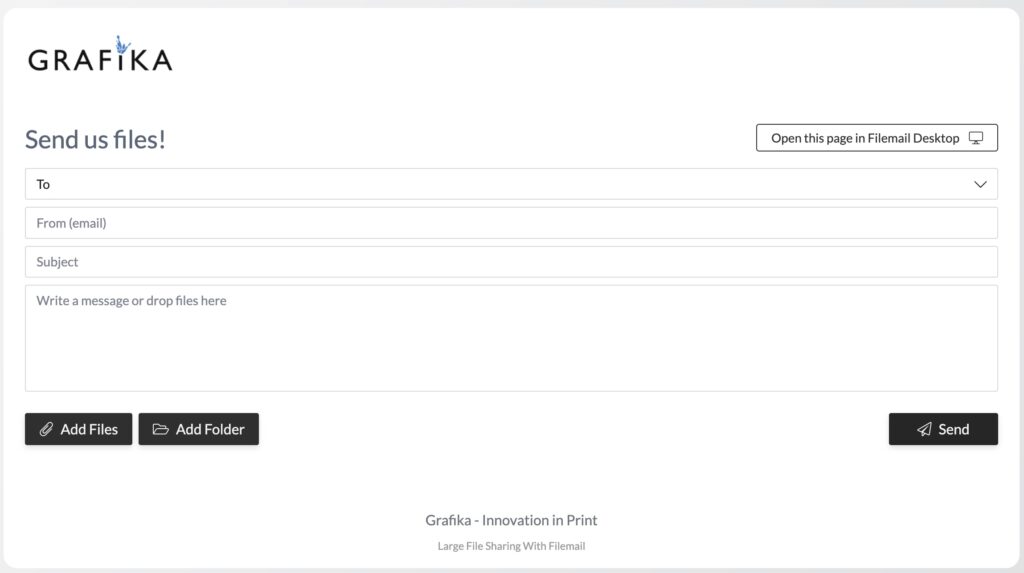
Click the Upload – Filemail button below or on our website under customer tools page.
Click on Choose recipient(s) to open a dialog box to select your CSR.
Enter your email address in the From (email) section.
Enter the email subject in the Subject section.
Add any notes you would like to include in the email that is automatically sent to the CSR you selected in the Write a message or drop files here section.
Click on Add Files or Add Folder to open a dialog box to select the corresponding files/folders you would like to send, OR drag and drop the files/folders into the drop files/folders here section.
Once you’ve added your files/folders a send button should appear. When you’ve attached everything you’d like to send and are satisfied with the information you entered, click the send button.
Once you’ve added your files/folders a send button should appear. When you’ve attached everything you’d like to send and are satisfied with the information you entered, click the send button.
When the file is finished uploading, an email will be sent to the chosen CSR’s email address as well as a confirmation email sent to your email address. You will also receive an email notification when the file is downloaded.